


Online image viewer
Your patients’ images,within minutes.
- From completion until studies are ready to view
- 15min
Get connected
Choose how
you connect.
Use the web viewer for diagnostic viewing on any computer. The Windows and Mac desktop clients are for diagnostic editing use only.
For diagnostic viewing
Open the online viewer in your browser
The quickest way in. Our Voyager ZeroFP web viewer runs in your browser on any practice computer, with nothing to install.
gigimages.com.au/ZeroFP
Step by step
- Open the online viewer using the button below.
- Sign in with your viewer login details.
- Open your patient’s study to view the images, or export them as JPG or DICOM.
Need a login, or setting the viewer up for a new doctor? Our IT team can help. Ask IT
For diagnostic editing use only
Voyager Web Viewer Easy Launcher for Windows
Start the diagnostic viewer from a shortcut on your desktop.
Why use it
- Start the Diagnostic Viewer from a shortcut on your desktop
- No web browser required
- No administrative rights required to install
VoyagerWebViewerSetup.exe · about 0.5 MB
Step by step
- Click the Download button below and save the file.
- Open your browser’s Downloads folder.
- Run the file VoyagerWebViewerSetup.exe.
For diagnostic editing use only
Install and launch Voyager web3 on a Mac
The Voyager Imaging web loader installs the Voyager web3 client on your Mac.
System requirements
- Intel-based Mac
- 100 GB free space on hard disk
VoyagerImaging.dmg.zip · about 104 MB
Step by step
- Click the Download button below to download the Voyager Imaging web loader.
- Run VoyagerImaging.dmg. This adds ‘VoyagerImaging’ under Devices in Finder.
- Run ‘Voyager Imaging’ from the VoyagerImaging device and confirm ‘move to Application folder’.
- Open the Applications folder and drag ‘Voyager Imaging’ to the Dock.
- Start Voyager Imaging, select or type in the web server name, and click ‘Launch web3’.
- The Voyager web client will load and launch.
Not sure which web server name to enter? Our IT team will give it to you. Ask IT
Apple mobile access
VoyagerPACS for iPhone and iPad
View studies on the go with the VoyagerPACS app from the App Store.
Apple App Store
Step by step
- Open the VoyagerPACS page on the App Store using the button below.
- Install the app on your iPhone or iPad.
- Open VoyagerPACS and sign in to view your patients’ studies.
Need help connecting the app? Our IT team can talk you through it. Ask IT
Android access
Use the web viewer on Android
On an Android phone or tablet, open the same online viewer in your mobile browser.
www.gigimages.com.au/ZeroFP
Step by step
- Open the online viewer in your phone or tablet’s browser using the button below.
- Sign in with your viewer login details.
- Open your patient’s study to view the images.
Fast, simple access
to patient studies.
Ready in about 15 minutes
Studies are available to view within 15 minutes of completion, so you can make timely decisions about your patient’s care.
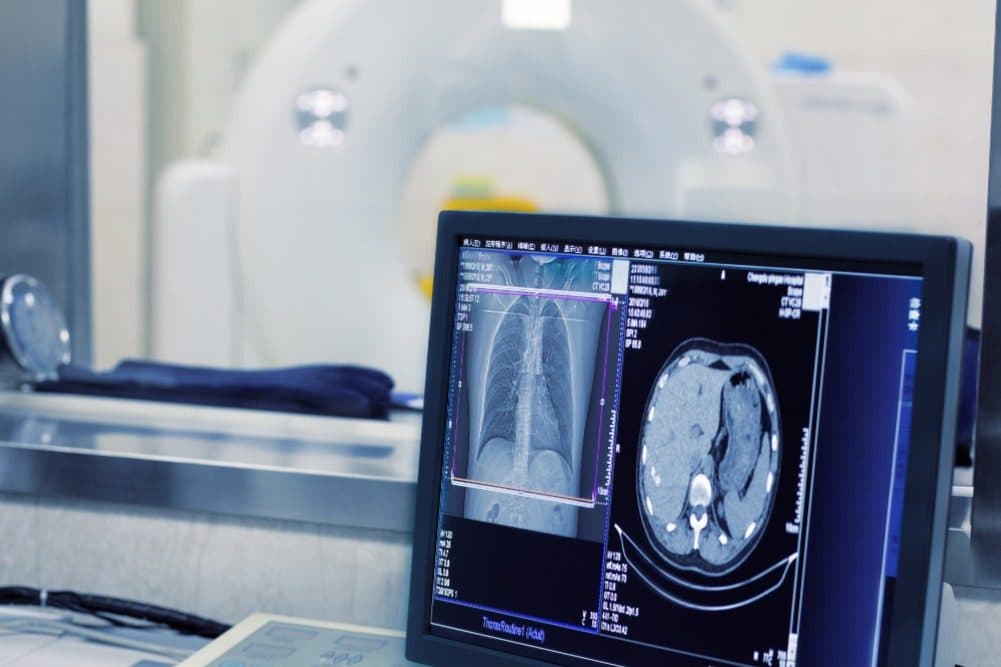
Export as JPG or DICOM
The tools you need
Troubleshooting
Quick answers to the questions practices ask us most. If you’re still stuck, our IT team is a message away.
Something
not working?
(01)I can’t sign in to the viewer
Check you’re on the right address: gigimages.com.au/ZeroFP. If your login still won’t work, or a new doctor at your practice needs access, contact our IT team and we’ll sort it out.
(02)The Windows launcher won’t install
Save the file first, then open your browser’s Downloads folder and run VoyagerWebViewerSetup.exe. The launcher doesn’t need administrative rights to install. If it still won’t run, our IT team can connect remotely and help.
(03)Voyager Imaging won’t install on my Mac
The Mac client lists an Intel-based Mac and 100 GB of free hard disk space as its system requirements. If your Mac doesn’t meet them, use the web viewer in your browser instead, or ask our IT team for help.
(04)Which web server name do I enter in Voyager Imaging?
Our IT team will give you the server name to type in before you click ‘Launch web3’. Just send us a quick request.
(05)How do I view images on an Android phone or tablet?
Open the online viewer in your phone or tablet’s browser and sign in. It’s the same viewer you use on your desktop.
(06)Reports aren’t arriving in our clinical software
Our electronic reports are delivered through Medical-Objects. If they’ve stopped arriving, contact our IT team, or see e-Referrals & EDI setup if your practice isn’t connected yet.
(07)My patient wants a copy of their images
Patients get their own access through My GIG. After their visit we send them an SMS with a secure link to view their images. Expect it within 48 hours of the scan. They confirm their date of birth, then enter a one-time password sent by SMS, and can view, download and share their images.
To make sure the link arrives, check we have your patient’s correct mobile number and date of birth. More on how My GIG works.
For patients · My GIG
Your images,
on your phone.
My GIG lets you view your own radiology images and reports. There’s no account to create and no login details to remember.

How it works
- Within 48 hours of your scan, look out for an SMS with your secure access link.
- Follow the security steps and enter your date of birth to confirm it’s you.
- Then enter the one-time password we send by SMS.
- View your images straight away on the menu page, and download or share them if you like.
- Your referring practitioner receives your results directly.
- Book a follow-up appointment with them to discuss your results and any next steps.
- Later, your report will also be available to view using the same link.
To make sure your link arrives, check we have your correct mobile number and date of birth.
- (01)
Simple access
After your visit we’ll text you a secure link to view your images. Expect it within 48 hours of your scan.
- (02)
Easy verification
Confirm your date of birth, then enter the one-time password we send by SMS.
- (03)
View, download and share
See your images straight away, and download or share them with family, friends or other healthcare providers.
- (04)
Quick follow-up care
We also send your results directly to the practitioner who referred you. Book a follow-up to go through them.
- (05)
Less paper
Digital access is part of our commitment to sustainability, cutting paper waste.
IT quick support
Still stuck? We’ll connect and help.
Our in-house IT team can look at the viewer with you, remotely if needed. Send a request and we’ll be in touch.
Next for your practice
Get reports straight into your software.
Set up EDI through Medical-Objects, and send e-referrals from Best Practice or Medical Director.